






BSD 3-Clause License with an explicit prohibition on use by entities contributing to Israeli occupation or genocide.
For full license see LICENSE.
The SIPSorceryMediaFFmpeg library is licensed separately under GNU LGPL v2.1 see License
This repository is the home of the SIPSorcery project - a comprehensive real-time communications library for .NET that enables developers to add VoIP and WebRTC capabilities to their applications. The project consists of multiple packages and extensive examples to help you get started quickly.
| Package | Version | Downloads | Description | README |
|---|---|---|---|---|
| SIPSorcery |  |
 |
Core library with SIP, WebRTC, RTP, ICE, STUN, and SDP support | README |
| SIPSorceryMedia.Abstractions |  |
 |
Interfaces for audio/video encoders and device access | README |
| SIPSorceryMedia.Windows |  |
 |
Windows-specific audio capture and playback and video capture | README |
| SIPSorceryMedia.FFmpeg |  |
 |
Cross-platform media support using FFmpeg | README |
| SIPSorcery.OpenAI.Realtime |  |
 |
Support for OpenAI's Realtime WebRTC and SIP end points | README |
| SIPSorcery.VP8 |  |
 |
Pure C# VP8 video codec implementation | README |
This repository includes 70+ example projects demonstrating various SIP and WebRTC scenarios:
- SIP Examples - Basic calling, transfers, DTMF, registration, and more (README)
- WebRTC Examples - Video streaming, data channels, signaling patterns (README)
- SIP Scenarios - Call transfers, load testing, complex call flows (README)
- WebRTC Scenarios - Advanced WebRTC use cases (README)
- Softphone - Full-featured Windows Forms softphone application (README)
- OpenAI - Example applications for interacting with OpenAI's Realtime WebRTC and SIP end poiints (README)
This fully C# library can be used to add Real-time Communications, typically audio and video calls, to .NET applications.
The diagram below is a high level overview of a Real-time audio and video call between Alice and Bob. It illustrates where the SIPSorcery and associated libraries can help.
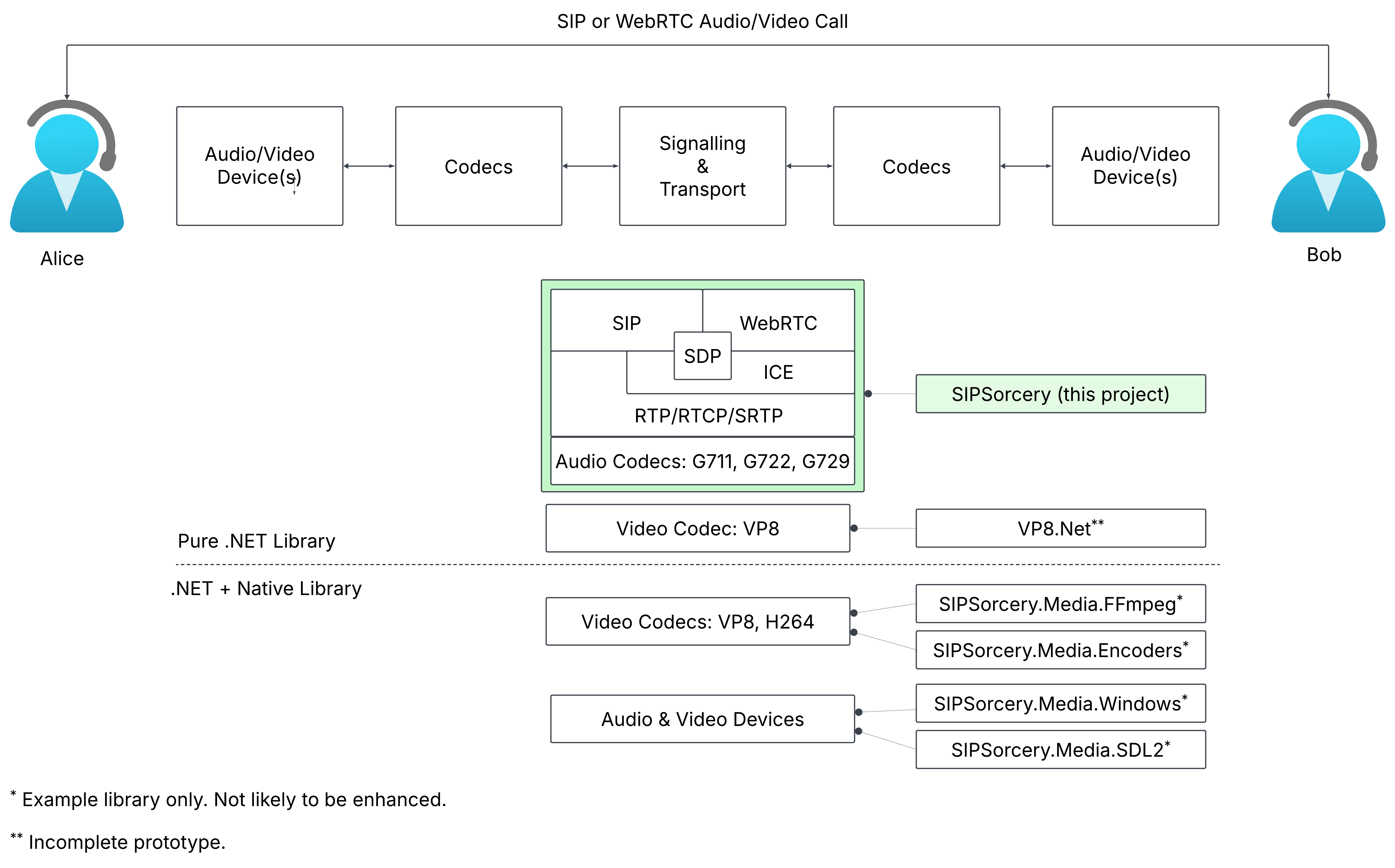
Supports both VoIP (get started) and WebRTC (get started).
Some of the protocols supported:
- Session Initiation Protocol (SIP),
- Real-time Transport Protocol (RTP),
- Web Real-time Communications (WebRTC), as of 26 Jan 2021 now an official IETF and W3C specification,
- Interactive Connectivity Establishment (ICE),
- SCTP, SDP, STUN and more.
Media End Points - Audio/Video Sinks and Sources:
-
The main
SIPSorcerylibrary does not provide access to audio and video devices or native codecs. Two separate library packages can be used depending on the runtime target:- SIPSorceryMedia.Windows: A Windows specific library that provides audio capture and playback.
- SIPSorceryMedia.FFmpeg: A cross platform library that can be used for high performance video codecs using PInvoke and FFmpeg.
-
This library includes audio codecs G711, G722, G729 and, thanks to Concentus, OPUS.
-
A C# port of the VP8 video codec is available at SIPSorcery.VP8 directory but it should be considered experimental and performs poorly at 1080p and greater. The advantage of the VP8 .NET port is it allows video streaming with NO native dependencies required.
-
High performance native video codecs (VP8, VP9, H264, H265 and AV1) are available via the SIPSorcery FFmpeg package which in turn depends on FFmpeg being available at runtime. These video codecs (H264 is the fastest) can be used to stream 4k video at 30fps on a typical Windows machine. See Video Pipeline Capacity below for some benchmarking results.
The library should work with .NET Framework >= 4.6.1 and all .NET Core and .NET versions. The demo applications initially targetted .NET Core 3.1 and are updated to later .NET versions as time and interest permit. The library is available via NuGet.
dotnet add package SIPSorceryWith Visual Studio Package Manager Console (or search for SIPSorcery on NuGet):
Install-Package SIPSorceryFFmpeg Install
For Windows the easiest option is:
winget install "FFmpeg (Shared)" --version 8.1Video processing — and encoding in particular — is generally the bottleneck in most real-time communications libraries. The original goal of the SIPSorcery library was to support 1080p video at 30 frames per second.
In June 2026, the new SIPSorcery.Cli tool was conceived to test various SIP, ICE, WebRTC, and benchmarking scenarios. The benchmarking has revealed that, thanks to the capabilities of the FFmpeg project (and the various libraries it in turn wraps), the SIPSorcery library running on a typical Windows machine with the H264 video codec is capable of processing 4K video at over 30fps and 1080p at over 100fps.
Sample test results are shown below.
| CPU | Cores | Logical processors | Memory |
|---|---|---|---|
| Intel(R) Core(TM) i9-10900 CPU @ 2.80GHz | 10 | 20 | 31.8 GB |
| Preset | Encode vp8.net | Encode ffmpeg H264 | Encode ffmpeg VP8 | Decode H264 (ffmpeg) | Decode VP8 (ffmpeg) | Decode VP8 (vp8.net) | Plumbing (no codec) |
|---|---|---|---|---|---|---|---|
| 480p | 74.9 | 500.1 | 361.5 | 120 | 120 | 60 | 6435.4 |
| 720p | 23.3 | 341.1 | 132.4 | 120 | 120 | 30 | 1735.5 |
| 1080p | 9 | 174.3 | 52.8 | 120 | 120 | 15 | 1084.9 |
| 1440p | 5.1 | 95.1 | 37.7 | 90 | 90 | n/a | 525.3 |
| 4k | 1.9 | 48.7 | 31.6 | 30 | 30 | n/a | 367.3 |
Generated 2026-06-16 09:31; duration 6s/run, 1 run(s)/point.
Class reference documentation and articles explaining common usage are available at https://sipsorcery-org.github.io/sipsorcery/.
The simplest possible example to place an audio-only SIP call is shown below. This example relies on the Windows specific SIPSorceryMedia.Windows library to play the received audio and only works on Windows (due to lack of .NET audio device support on non-Windows platforms).
dotnet new console --name SIPGetStarted --framework net10.0 --target-framework-override net10.0-windows10.0.17763.0
cd SIPGetStarted
dotnet add package SIPSorcery
dotnet add package SIPSorceryMedia.Windows
# Paste the code below into Program.cs.
dotnet run
# If successful you will hear a "Hello World" announcement.
string DESTINATION = "music@iptel.org";
Console.WriteLine("SIP Get Started");
var userAgent = new SIPSorcery.SIP.App.SIPUserAgent();
var winAudio = new SIPSorceryMedia.Windows.WindowsAudioEndPoint(new SIPSorcery.Media.AudioEncoder());
var voipMediaSession = new SIPSorcery.Media.VoIPMediaSession(winAudio.ToMediaEndPoints());
// Place the call and wait for the result.
bool callResult = await userAgent.Call(DESTINATION, null, null, voipMediaSession);
Console.WriteLine($"Call result {(callResult ? "success" : "failure")}.");
Console.WriteLine("Press any key to hangup and exit.");
Console.ReadLine();The GetStarted example contains the full source and project file for the example above.
The three key classes in the above example are described in dedicated articles:
The examples folder contains sample code to demonstrate other common SIP/VoIP cases.
The WebRTC specifications do not include directions about how signaling should be done (for VoIP the signaling protocol is SIP; WebRTC has no equivalent). The example below uses a simple JSON message exchange over web sockets for signaling. Part of the reason the Getting Started WebRTC is longer than the Getting Started VoIP example is the need for custom signaling.
The example requires two steps:
- Run the
dotnetconsole application, - Open an HTML page in a browser on the same machine.
The full project file and code are available at WebRTC Get Started.
Step 1:
dotnet new console --name WebRTCGetStarted
cd WebRTCGetStarted
dotnet add package SIPSorcery
dotnet add package SIPSorcery.VP8
# Paste the code below into Program.cs.
dotnet run
using System;
using System.Linq;
using System.Net;
using System.Threading.Tasks;
using SIPSorcery.Media;
using SIPSorcery.Net;
using Vpx.Net;
using WebSocketSharp.Server;
namespace demo
{
class Program
{
private const int WEBSOCKET_PORT = 8081;
static void Main()
{
Console.WriteLine("WebRTC Get Started");
// Start web socket.
Console.WriteLine("Starting web socket server...");
var webSocketServer = new WebSocketServer(IPAddress.Any, WEBSOCKET_PORT);
webSocketServer.AddWebSocketService<WebRTCWebSocketPeer>("/", (peer) => peer.CreatePeerConnection = () => CreatePeerConnection());
webSocketServer.Start();
Console.WriteLine($"Waiting for web socket connections on {webSocketServer.Address}:{webSocketServer.Port}...");
Console.WriteLine("Press any key exit.");
Console.ReadLine();
}
private static Task<RTCPeerConnection> CreatePeerConnection()
{
var pc = new RTCPeerConnection(null);
var testPatternSource = new VideoTestPatternSource(new VP8Codec());
MediaStreamTrack videoTrack = new MediaStreamTrack(testPatternSource.GetVideoSourceFormats(), MediaStreamStatusEnum.SendOnly);
pc.addTrack(videoTrack);
testPatternSource.OnVideoSourceEncodedSample += pc.SendVideo;
pc.OnVideoFormatsNegotiated += (formats) => testPatternSource.SetVideoSourceFormat(formats.First());
pc.onconnectionstatechange += async (state) =>
{
Console.WriteLine($"Peer connection state change to {state}.");
switch(state)
{
case RTCPeerConnectionState.connected:
await testPatternSource.StartVideo();
break;
case RTCPeerConnectionState.failed:
pc.Close("ice disconnection");
break;
case RTCPeerConnectionState.closed:
await testPatternSource.CloseVideo();
testPatternSource.Dispose();
break;
}
};
return Task.FromResult(pc);
}
}
}Step 2:
Create an HTML file, paste the contents below into it, open it in a browser that supports WebRTC and finally press the start button.
<!DOCTYPE html>
<head>
    <script type="text/javascript">
        const WEBSOCKET_URL = "ws://127.0.0.1:8081/"

        var pc, ws;

        async function start() {
            pc = new RTCPeerConnection();

            pc.ontrack = evt => document.querySelector('#videoCtl').srcObject = evt.streams[0];
            pc.onicecandidate = evt => evt.candidate && ws.send(JSON.stringify(evt.candidate));

            ws = new WebSocket(document.querySelector('#websockurl').value, []);
            ws.onmessage = async function (evt) {
                var obj = JSON.parse(evt.data);
                if (obj?.candidate) {
                    pc.addIceCandidate(obj);
                }
                else if (obj?.sdp) {
                    await pc.setRemoteDescription(new RTCSessionDescription(obj));
                    pc.createAnswer()
                        .then((answer) => pc.setLocalDescription(answer))
                        .then(() => ws.send(JSON.stringify(pc.localDescription)));
                }
            };
        };

        async function closePeer() {
            await pc?.close();
            await ws?.close();
        };

    </script>
</head>
<body>

    <video controls autoplay="autoplay" id="videoCtl" width="640" height="480"></video>

    <div>
        <input type="text" id="websockurl" size="40" />
        <button type="button" class="btn btn-success" onclick="start();">Start</button>
        <button type="button" class="btn btn-success" onclick="closePeer();">Close</button>
    </div>

</body>

<script>
    document.querySelector('#websockurl').value = WEBSOCKET_URL;
</script>
Result:
If successful the browser should display a test pattern image.
The examples folder contains sample code to demonstrate other common WebRTC cases.