Homepage
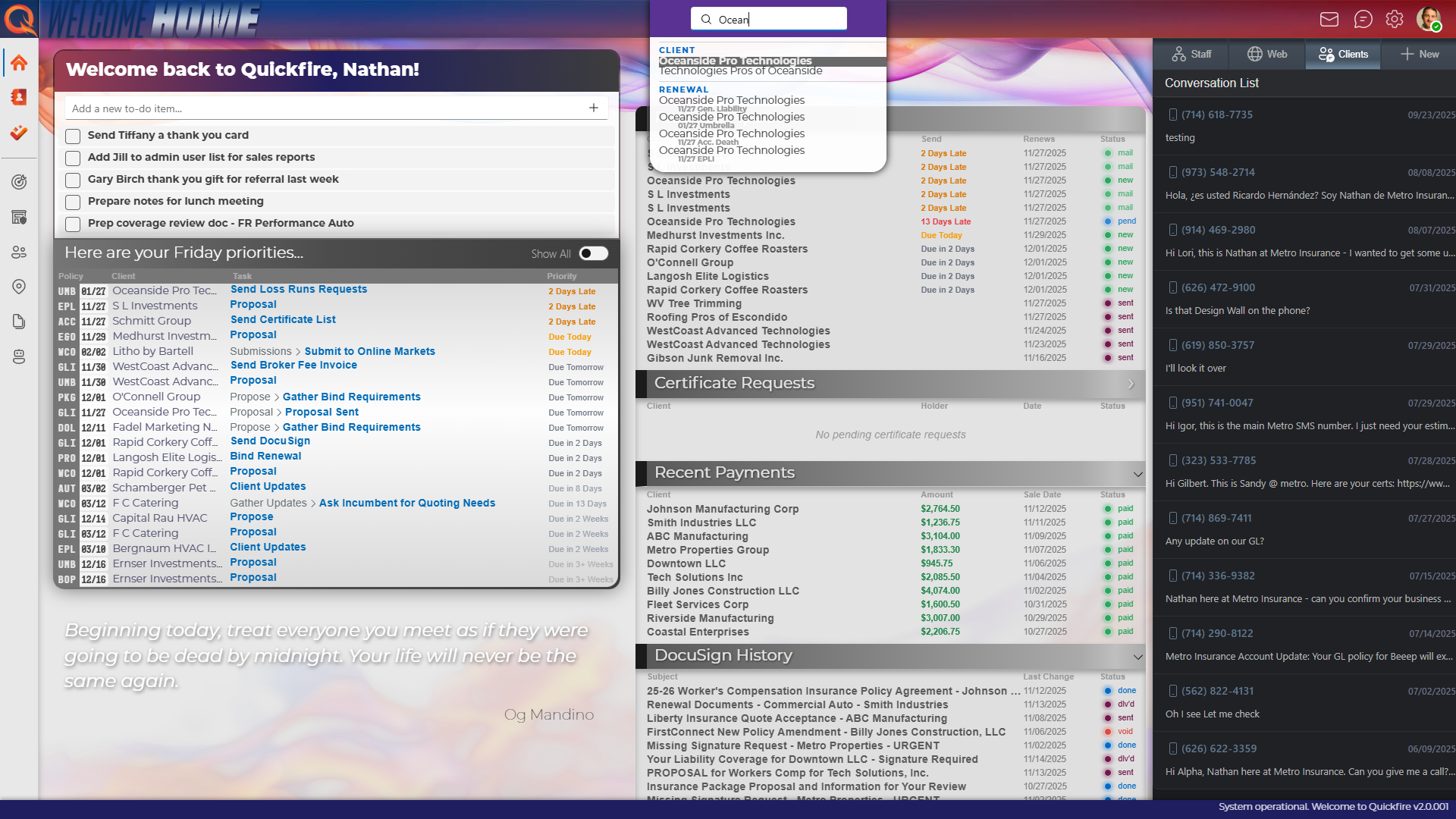
The Homepage is Quickfire’s shared cockpit for CSRs, producers, and ops leads. It’s designed to answer one question fast: “What do I need to do next?”
Quickfire starts with a straightforward login screen. Users enter an email address and password and are authenticated against the local Quickfire database. These accounts are not tied to any external identity provider. They are not Entra, not Google, and not Quickfire billing accounts.
User accounts live entirely inside whatever database you configured for your Quickfire instance. That might be a local SQLite database for desktop installs, or a SQL Server instance for server and cloud deployments. Billing credentials are handled separately and are never used for logging in.
Once authenticated, the user is taken directly to the Homepage.
The Homepage is designed to be Quickfire’s mission control. It gives you a live snapshot of everything you should care about right now, without forcing you to click into five different areas just to get oriented.
From here, you can always return by clicking Home in the left-hand navigation.
At the top of the Homepage is a personal to-do list. This list is intentionally separate from workflow-driven tasks like renewals or submissions.
It’s meant for things you want to remember that don’t naturally belong in the system, such as reminders, follow-ups, or personal notes. You can add items inline, reorder them by dragging, and check them off as you go.
Think of this as your scratchpad for the day.
Below the personal to-do list is the Priorities section. This is where Quickfire surfaces tasks generated by renewals and other workflows.
Each priority shows the policy type, expiration date, client name, and the specific task or sub-task that needs attention. The goal date is displayed so you can immediately see what’s due, what’s upcoming, and what’s overdue.
If you’re waiting on someone else and don’t want a task screaming at you all day, you can click the date to temporarily de-emphasize it. The task will blur for the rest of the day and automatically reset the next morning. This doesn’t change the goal date; it just helps you manage your mental load.
Clicking a task takes you directly to the relevant workflow, such as the renewal task list. Clicking the client name opens the client record.
By default, the Priorities list shows only the most urgent task per renewal so you’re not overwhelmed. You can toggle “Show All” to see everything if you want a fuller picture.
The middle column of the Homepage contains several collapsible widgets that surface active work across the system.
The Proposal Pipeline shows proposals that need to be created or sent, along with their goal dates and renewal context.
Certificate Requests act as an inbox for incoming certificate requests, often coming from website or portal integrations. A status indicator in the header shows whether the integration is currently connected, and the gear icon takes you directly to its configuration.
Recent Payments displays payment activity from integrations like ePayPolicy. Even if an integration is temporarily offline, cached payment data remains visible so you’re never flying blind.
DocuSign History shows recent envelope activity and lets you quickly inspect or download signed and pending documents.
Leads appear here as an inbound feed, allowing you to preview new opportunities and jump straight into working them.
Not every team uses every feature. From Settings → Profile → Home Page Layout, you can control exactly what appears on the Homepage.
You can hide entire sections, choose whether they load collapsed or expanded, and control how many items appear in each widget. If your team doesn’t use proposals or certificates, you don’t have to see them at all.
The Homepage adapts to how you work, not the other way around.
On the right side of the Homepage are high-level safety nets.
Upcoming Expirations shows policies that are approaching expiration across the entire book of business, not just those assigned to you. This gives leadership and support staff a broader view of what’s coming.
Incomplete Tasks is designed to prevent things from falling through the cracks. If a task remains incomplete past its renewal date, it appears here regardless of priority settings.
Quick Links provide shortcuts to external websites or internal pages you access frequently.
The Homepage is designed to reduce context switching and decision fatigue. It gives you just enough information to know what needs attention right now, while still allowing you to drill deeper when necessary.
Combined with FireSearch, keyboard shortcuts, and configurable widgets, the Homepage becomes a fast, reliable starting point for every day in Quickfire.