
Interactive ArchiMate model viewer for Jupyter, Marimo, and VS Code notebooks.
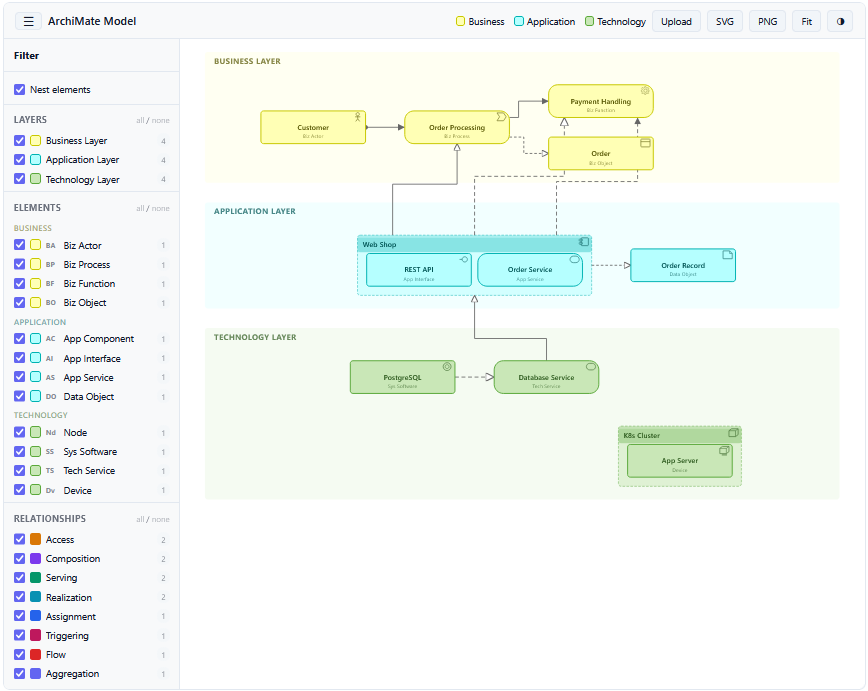
Renders ArchiMate models from Open Exchange Format XML or Archi .archimate files, or from Python data, in layer bands from top to bottom:
- Lilac: Motivation
- Tan: Strategy
- Yellow: Business
- Blue: Application
- Green: Technology, including the Physical elements
- Pink: Implementation & Migration
- Grey: Other (Location, Grouping, and any other layer)
A band only appears when the model has elements in it. Every ArchiMate 3.2 element type is drawn with its notation icon, junctions as small dots (filled for And, hollow for Or) in the band of the elements they join, and all 11 relationship types with their notation. Elements joined by Composition or Aggregation are nested.
uv add anywidget-archimatefrom anywidget_archimate import ArchiMate
# From an XML file
widget = ArchiMate.from_xml("model.xml")
widget# Or load later
widget = ArchiMate()
widget.load_xml("model.xml")widget = ArchiMate(
elements=[
{"id": "a1", "name": "Web shop", "type": "ApplicationComponent", "layer": "Application", "documentation": ""},
{"id": "t1", "name": "App server", "type": "Node", "layer": "Technology", "documentation": ""},
],
relationships=[
{"id": "r1", "source": "t1", "target": "a1", "type": "Serving", "name": ""},
],
height=500,
)layerisMotivation,Strategy,Business,Application,Technology,ImplementationorOther, in any case;Implementation & MigrationandPhysical(Technology) work too. Without a layer, or with one the widget does not know, the element goes to the layer of its type, else to Other.typeis an ArchiMate 3.2 element type such asBusinessProcess,Capability,GoalorWorkPackage; a junction isAndJunctionorOrJunction. Other types draw as a plain box.- Relationship
typeis one ofComposition,Aggregation,Assignment,Realization,Serving,Access,Influence,Triggering,Flow,SpecializationorAssociation. - Names, documentation and the other values are shown as text, never as HTML.
Clicking an element sets selected_element to its dict and opens its details. The host can also select or outline elements:
widget.selected_element = {"id": "a1"}  # a dict with at least the id
widget.highlight_ids = ["a1", "t1"]     # outline several elements
widget.observe(lambda change: print(change["new"]), names="selected_element")To show several runs of one model, give elements and relationships an optional status:
status |
Element | Relationship |
|---|---|---|
partial |
dashed and faded | faded |
changed |
amber fill | amber line |
only_a |
red fill | red line |
only_b |
green fill | green line |
ghost |
very faint and dashed | very faint |
stable or no status draws as usual. An optional badge on an element (for example "2/3") is drawn in its top left corner; text longer than 26 characters is cut.
The toolbar opens the filter panel (hide layers, element types and relationship types, or turn off nesting), uploads an .xml or .archimate file, exports the diagram as SVG or PNG, fits the diagram to the view and switches between light and dark. The theme follows the host page (marimo, Jupyter, VS Code, or the operating system) unless you choose one: pass dark_mode=True or dark_mode=False, set widget.dark_mode, or use the toolbar switch.
git clone https://github.com/StevenBtw/anywidget-archimate.git
cd anywidget-archimate
uv sync
uv run pytest
The examples/demo_marimo.py example needs marimo, which is an optional extra:
uv sync --extra examplesApache-2.0