
🌎 Deutsch
Edit videos right in the media pool: analyse, optimize for the web, trim, pick a poster and write subtitles – with ffmpeg, as jobs in the background. The counterpart to the Image Editor.
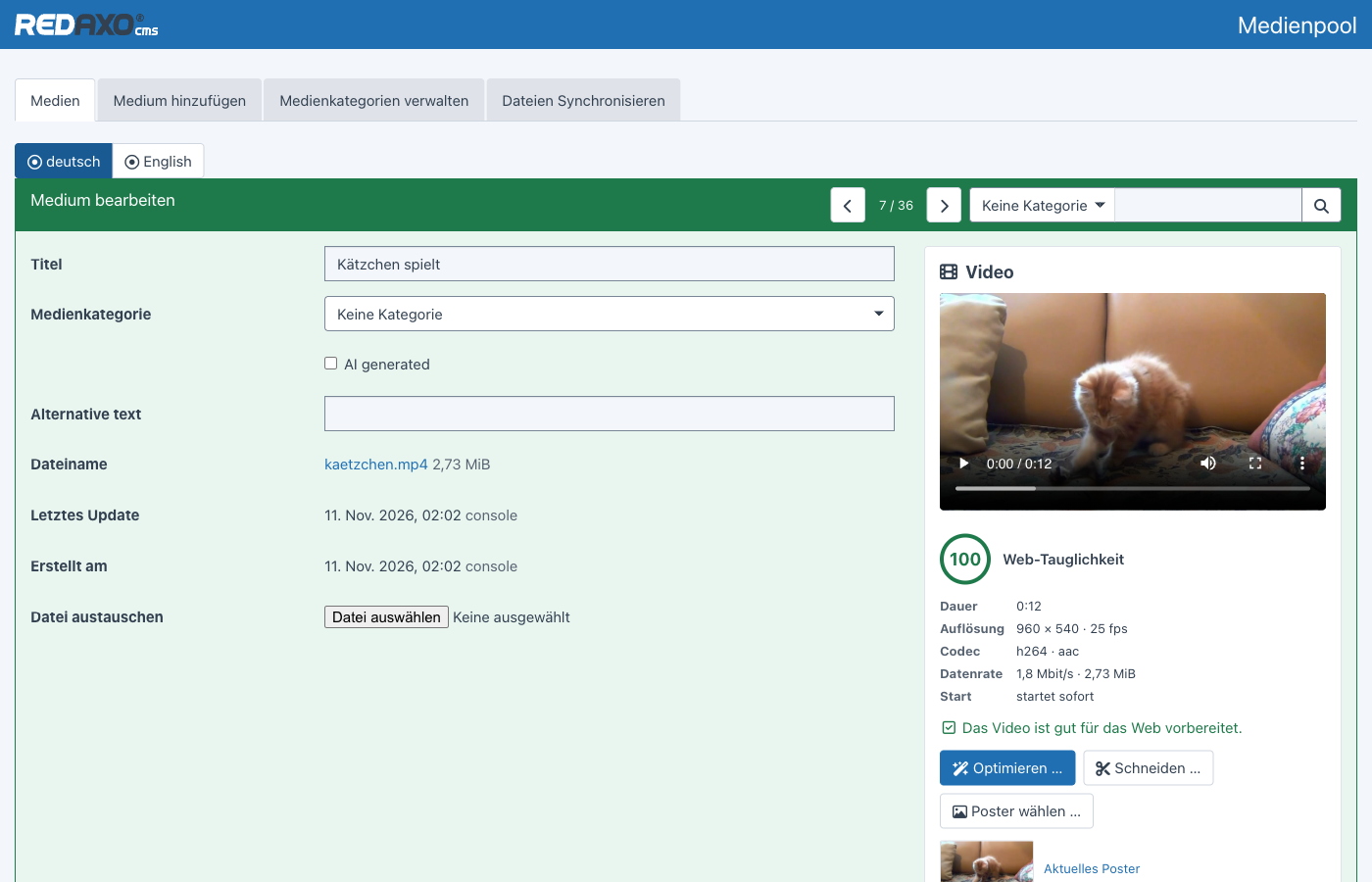
- Analysis – resolution, codecs, duration, bitrate, whether the video starts right away; plus a web readiness score with recommendations you can apply with one click
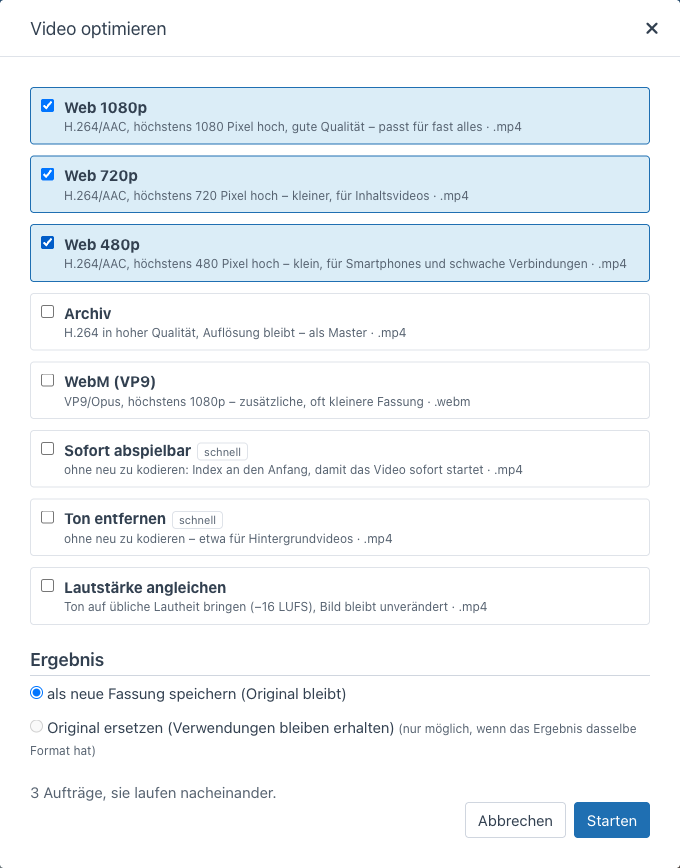
- Optimize – presets for the web (1080p, 720p, 480p, WebM), archive, instant playback, remove audio, normalize loudness; several versions in one step
- Trim – timeline with thumbnails, split, remove sections, drag edges; fast without re-encoding or frame-accurate
- Poster – pick a still frame down to the exact frame
- Subtitles and chapters – editor with live preview, import of VTT and SRT, trimmed along automatically
- Result as a new, linked version or in place of the original – where it is used stays intact
- Background jobs with progress, cancel and retry; only one at a time
- Permissions in three levels: view, edit, replace the original
This rewrite for REDAXO 6 takes ideas from the ffmpeg addon for REDAXO 5. The screenshots show the German backend.
composer require friendsofredaxo/video_editor:1.x-dev
php bin/console migrate
Server requirements:
- ffmpeg and ffprobe (4.4 or newer) – looked up in
PATHand the usual folders (/usr/bin,/usr/local/bin,/opt/homebrew/bin…) - PHP for the command line, so jobs can run in the background (
execallowed). Without it the video editor processes the job after the response has been sent; in addition the cronjobvideo_editor_workpicks up anything left over.
If the programs live elsewhere, set them as environment variables (e.g. in .env) or in the addon configuration:
| Environment variable | Configuration | Meaning |
|---|---|---|
FFMPEG_BIN |
ffmpeg_path |
path to ffmpeg |
FFPROBE_BIN |
ffprobe_path |
path to ffprobe |
PHP_CLI |
php_cli |
PHP for the command line (under PHP-FPM it is otherwise looked up next to the FPM binary) |
| – | timeout |
maximum duration of a job in seconds (default 3600) |
The panel appears in the detail view of every video in the media pool (MP4, M4V, MOV, WebM, MKV, OGV, AVI). It shows a preview and the key facts and rates how well the video suits the web – from 0 to 100. Points are deducted for codecs browsers don't (H.265) or hardly play, oversized resolutions, high bitrates, videos that only start once fully loaded, and unsuitable formats. Every hint comes with a matching preset.
| Preset | Result |
|---|---|
| Web 1080p | H.264/AAC, at most 1080 pixels high – fits almost everything |
| Web 720p | H.264/AAC, at most 720 pixels high – for content videos |
| Web 480p | H.264/AAC, at most 480 pixels high – for phones and slow connections |
| Archive | H.264 in high quality, resolution unchanged |
| WebM (VP9) | VP9/Opus, at most 1080p – additional, often smaller version |
| Instant playback | without re-encoding: index moved to the start (faststart) |
| Remove audio | without re-encoding – e.g. for background videos |
| Normalize loudness | audio to −16 LUFS, picture unchanged |
Videos are never scaled up beyond the original resolution. The result is added as a new version in the media pool and linked to the original – or it replaces the original if the format stays the same.
Several presets can be ticked together, e.g. 480p, 720p and 1080p: each becomes its own job, they run one after another. Replacing the original only works with a single preset. On the website the browser then picks the matching version by screen width (see For developers).
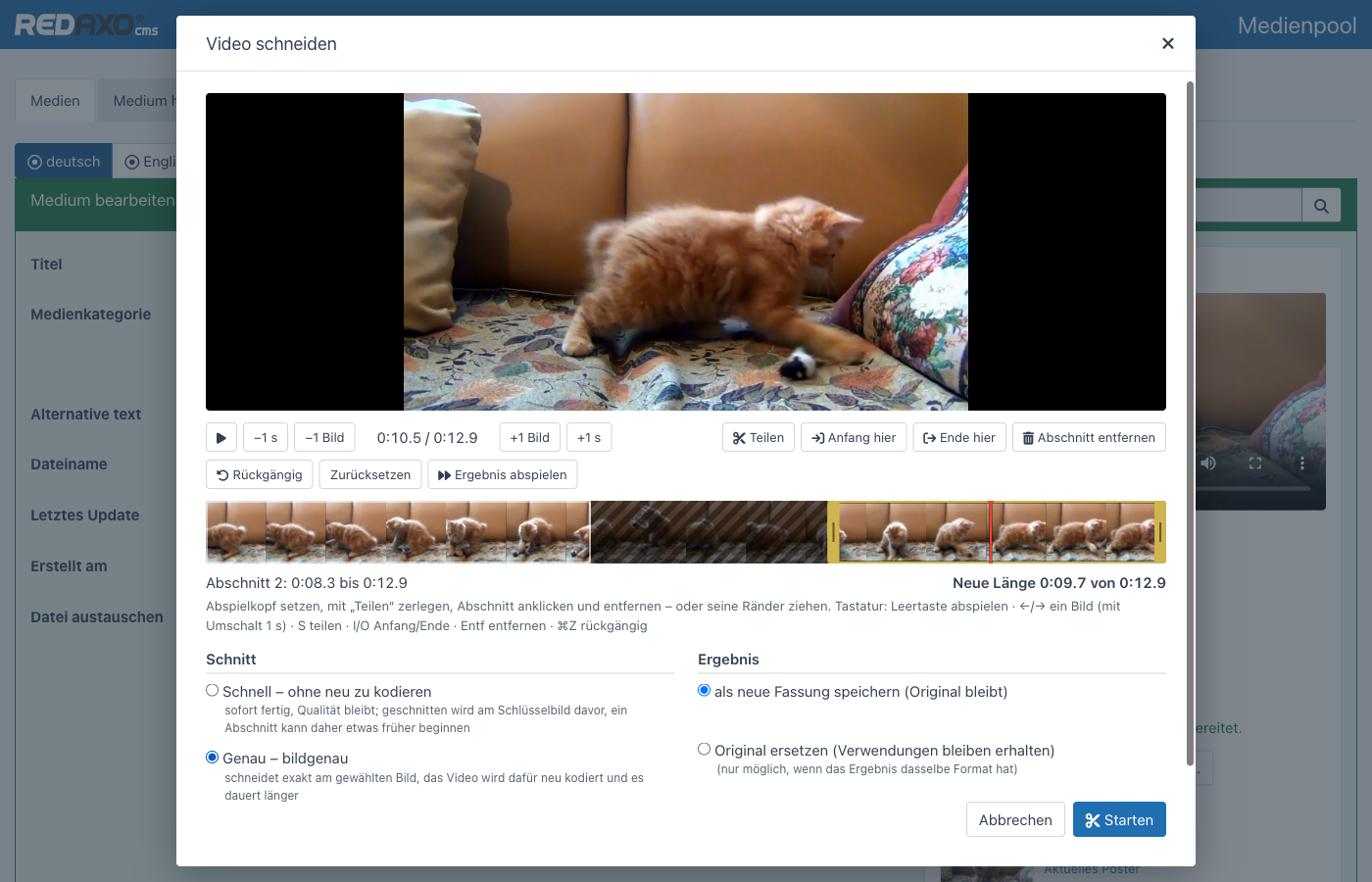
Set the playhead, split, click a section and remove it – or drag its edges. Play result skips the removed parts, the new length is shown below.
| Key | Action |
|---|---|
| Space | play / pause |
| ← → | one frame back / forward (with ⇧ one second) |
| Home / End | to the start / end |
| S | split at the playhead |
| I / O | move start / end of the selected section here |
| Del | remove section |
| ⌘Z / Ctrl+Z | undo |
Two ways to cut:
- Exact – frame-accurate; the video is re-encoded (H.264/AAC, VP9/Opus for WebM)
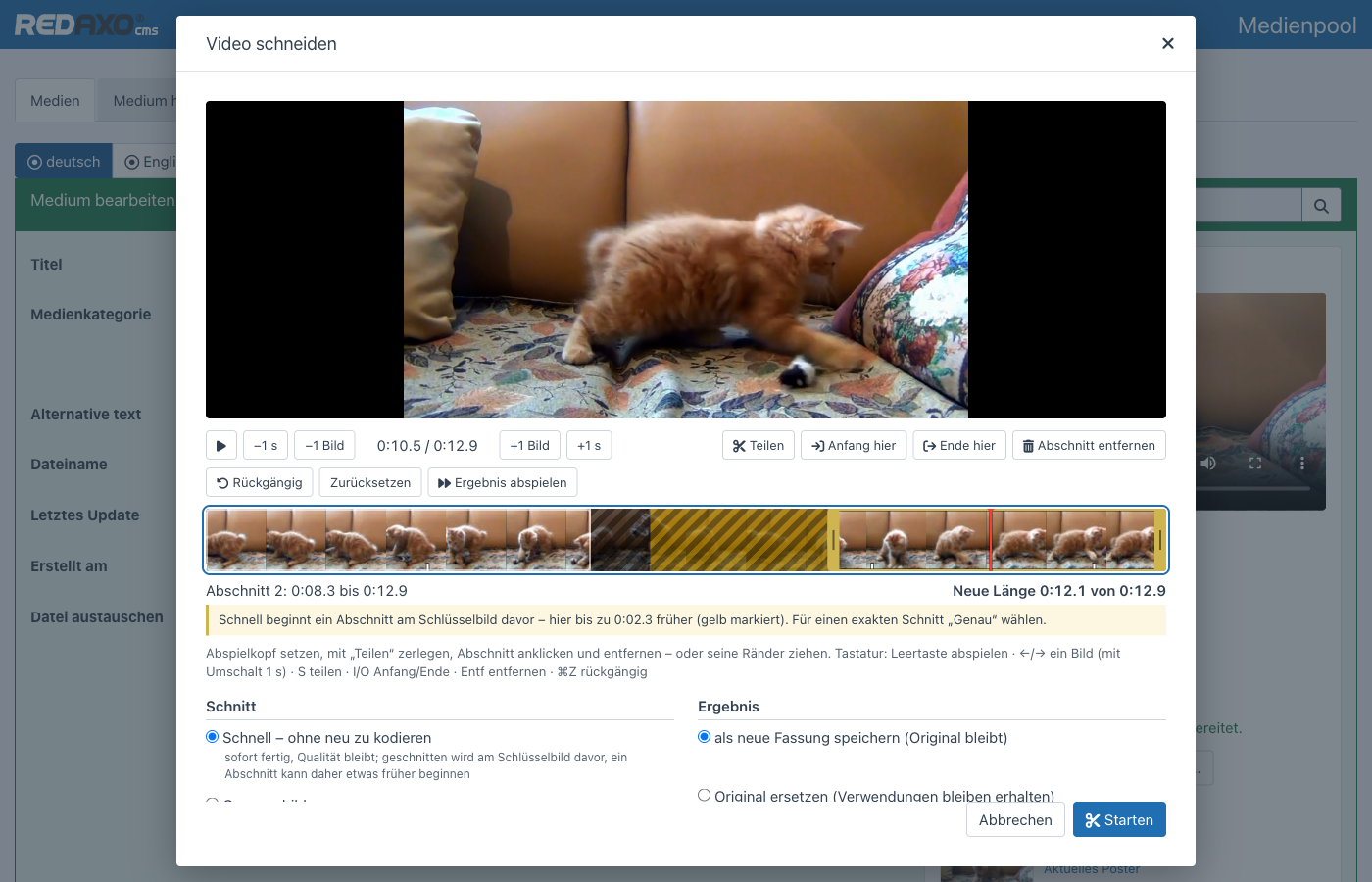
- Fast – without re-encoding, done instantly and without quality loss. A section can only start at a keyframe, though. The editor shows the keyframes on the timeline and marks in yellow what comes along as a result; if nothing would be removed that way, it recommends “Exact”.
Subtitles are trimmed along: entries in removed parts are dropped, partly removed ones shortened, everything after moves forward. A new version gets its own subtitle files; if the cut replaces the original, its files are adjusted.
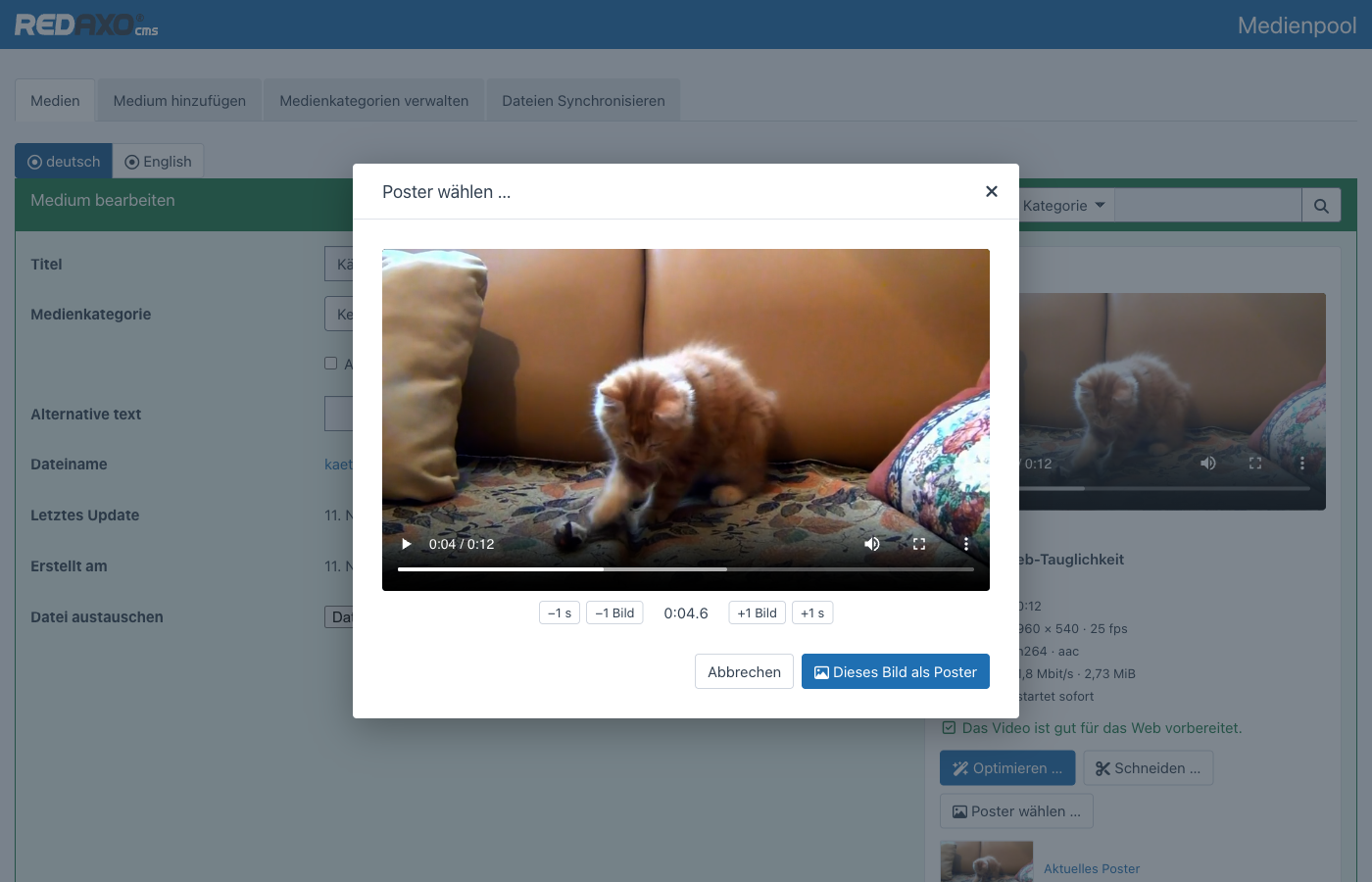
Find the spot, hit it exactly with “±1 frame”, take it: the still lands as a JPEG in the media pool, in the same category, linked to the video. A new poster replaces the file of the previous one – wherever it is used, the new one shows up right away.
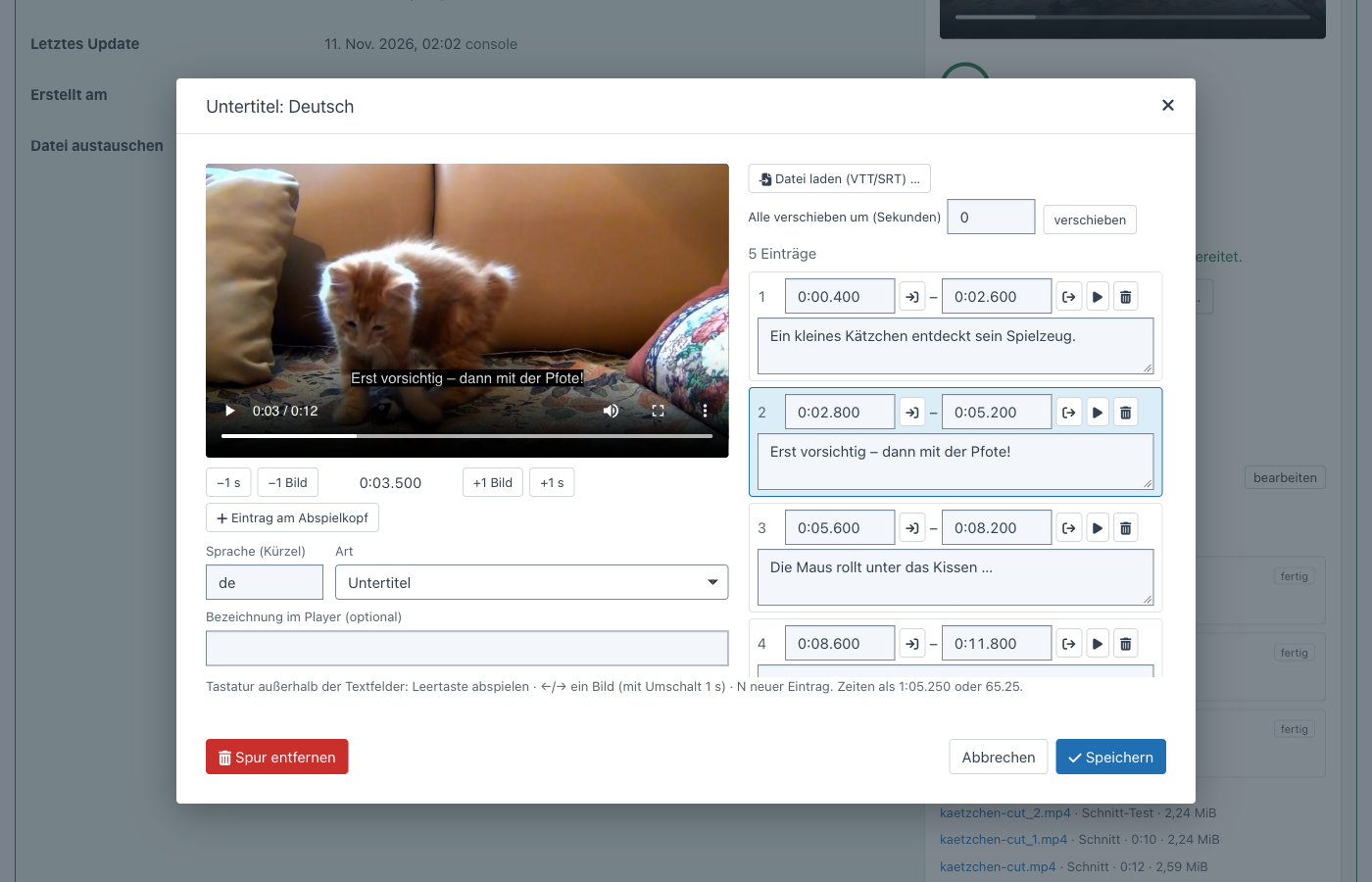
Any number of tracks per video – subtitles, captions for the deaf and hard of hearing (with sounds) and chapters, per language. The editor shows every change in the video right away:
- Entry at playhead (key N) – starts at the current position, ends after two seconds or before the next one
- set start and end to the playhead with a button, or type times as
1:05.250or65.25 - the current entry is highlighted, ▶ plays from its start
- Shift all by a few seconds – e.g. when a file doesn't match the cut
- Load file – WebVTT or SubRip (SRT), also in UTF-16 or Windows-1252
Tracks are saved as WebVTT in the media pool (video-de.vtt, video-en-cc.vtt, video-de-chapters.vtt), linked to the
video. Saving and loading sanitizes: only allowed WebVTT tags (<b>, <i>, <u>, <v speaker>, <lang>, <c>,
<ruby>), no STYLE/REGION blocks, no HTML. For the website the video editor delivers tracks as text/vtt – many web
servers don't know the extension and send text/plain, which browsers reject.
Optimizing and trimming run as jobs: the video editor starts php bin/console video:work in the background, the page
shows the progress. Only one job runs at a time (lock file) so the server isn't overloaded. Stuck jobs (e.g. after a
crash) are released, finished ones deleted after 30 days.
php bin/console video:work              # process waiting jobs (at most 55 minutes)
php bin/console video:work --seconds=60
The cronjob video_editor_work (every minute) catches up on anything left over – useful when exec is disabled.
REDAXO 6 cronjobs only run when the system cron triggers them every minute:
# crontab -e (adjust the paths to PHP and the project)
* * * * * /usr/bin/php /path/to/project/bin/console cronjob:run > /dev/null 2>&1
php bin/console cronjob:run video_editor_work runs it right away, regardless of its schedule.
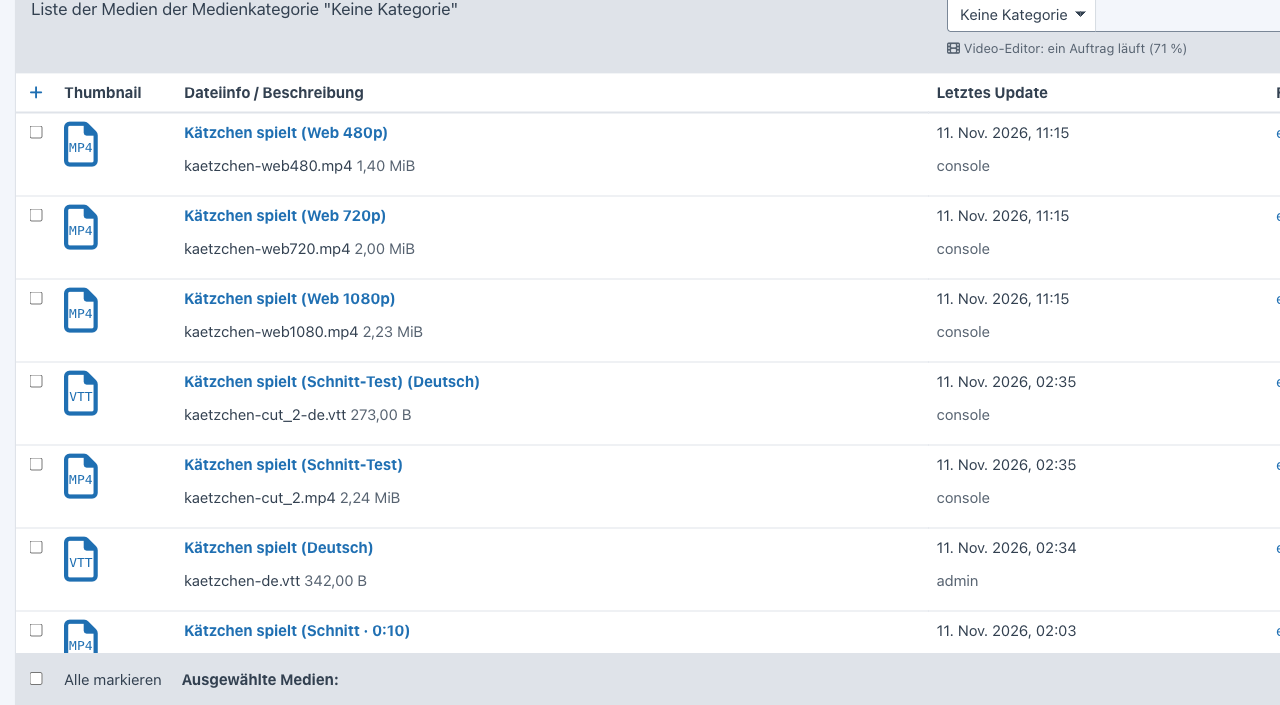
The media list shows open jobs too: a notice at the top (“one job running (71 %), 2 waiting”) and the state at the video – both update until everything is done.
Also without the backend, e.g. when setting up a website or for many videos at once:
php bin/console video:optimize film.mp4 web480,web720,web1080,webm   # create jobs (--run: process them right here)
php bin/console video:poster film.mp4 4.6                            # still at 4.6 s as poster
php bin/console video:subtitles film.mp4 film-en.srt --lang=en # take over subtitles (--role, --label)| Who | May |
|---|---|
| anyone with access to the media category | view preview, analysis, jobs and versions |
video_editor[] |
optimize (as a new version), trim, pick a poster, edit subtitles, cancel and retry jobs |
additionally video_editor[replace] (options) |
replace the original with the result |
| admins | everything |
The media category permission always applies: even with video_editor[] a video in a foreign category stays locked.
Checks happen on the server; the interface only hides what isn't allowed.
A complete <video> with poster, web versions and subtitles:
use FriendsOfRedaxo\VideoEditor\VideoEditor;

echo VideoEditor::html('film.mov', ['label' => 'Our film', 'captions' => true]);  // subtitles in the page language on
echo VideoEditor::html('loop.mp4', ['background' => true]);                       // muted, looping, no controls
Options: background, captions (true or a language code), poster (another file name or false), preload
(metadata, none, auto), label, class.
The building blocks:
$poster = VideoEditor::poster('film.mov');          // Media|null – most recently picked poster
foreach (VideoEditor::sources('film.mov') as $s) {  // in checking order, with a media query for small versions
    echo '<source src="' . $s['url'] . '" type="' . $s['type'] . '"' . ($s['media'] ? ' media="' . $s['media'] . '"' : '') . '>';
}
VideoEditor::sources('film.mov', small: true);      // without 1080p and WebM, e.g. for background videos
VideoEditor::tracks('film.mov');                    // subtitles/chapters: file, url (text/vtt), lang, kind, label
VideoEditor::editUrl('film.mov');                   // edit in the media pool – null without permission
The order of sources(): 480p with (max-width: 640px), 720p with (max-width: 1280px), then WebM, then the largest
MP4 version – without an MP4 version the original. The browser takes the first matching source, so a phone loads the
small file.
To use the video editor only when it is installed, check
class_exists(\FriendsOfRedaxo\VideoEditor\VideoEditor::class) first.
fluid doesn't need the video editor but uses it when present: the “Video” block shows the poster picked here when no preview image is set, delivers the web versions and takes over the subtitles (including the “text of the video” transcript) when none are set in the block; the hero background video takes the smaller version, and the media field gets a “Edit video” button for videos.
- ffmpeg exclusively with argument lists via
proc_open– no shell, all input validated - progress via
-progress; cancelling stops ffmpeg (SIGTERM first, then SIGKILL) - the editor loads the video through its own endpoint with range requests, so the browser can seek even when the web
server delivers
/mediawithout range support - dialogs and colours of the core, light and dark; no inline styles or handlers (backend Content Security Policy)
The unit tests cover reading, sanitizing and remapping subtitles. The integration tests check the permissions (view, edit, replace, foreign category). They need a REDAXO installation with a database and ffmpeg, create their own test data (everything named “ve-test”, short videos generated by ffmpeg) and clean up afterwards:
REDAXO_BOOTSTRAP=/path/to/redaxo/.tools/bootstrap.php vendor/bin/phpunit -c /path/to/video_editor/phpunit.dist.xmlThomas Skerbis (skerbis) for Friends Of REDAXO
Sample video in the screenshots: kitten from Pixabay.
MIT, see LICENSE.