
🌎 Deutsch
Complete video toolkit for REDAXO CMS – automatic optimization, cut editor, subtitles and detailed video analysis, all in one add-on.
- PHP function
exec,shell_execorproc_openenabled - FFmpeg and FFprobe 4.3 or newer, available in the PATH
- Recommended for automatic optimization: the Cronjob add-on
- REDAXO 5.18.1 or newer
- PHP 8.1 or newer
- Important: the VideoPreview add-on must be uninstalled (its features are included)
- Automatic optimization (new in 5.0) – new videos are scaled down to a standard size after the upload and via cronjob, see below
- Background processing – you may close the browser; the result is taken over on the next backend request or cronjob
- Media pool integration with
web_prefix - Keeps metadata (title, description, copyright)
- Savings display for web versions and optimized originals
- Auto cleanup of originals after a successful conversion (web version mode only)
- Simple settings instead of FFmpeg commands: size (original, Full HD, HD, 480p, 360p), quality (high, balanced, small file) and audio (keep, normalize loudness, remove) – separately for "Optimize" (replace original) and "Create web version" (new file)
- Always included: H.264/AAC, browser-compatible pixel format (yuv420p), fast start (plays instantly), only the first video and audio stream. Videos are never scaled up, portrait stays portrait (Full HD: at most 1920 × 1080 or 1080 × 1920)
- Several variants per video: if a web version exists, a dialog offers "Add another variant" with its own size (
web_<name>_2.mp4,_3.mp4, …) - Setting hint right at the buttons, e.g. "Full HD · Balanced · with audio"
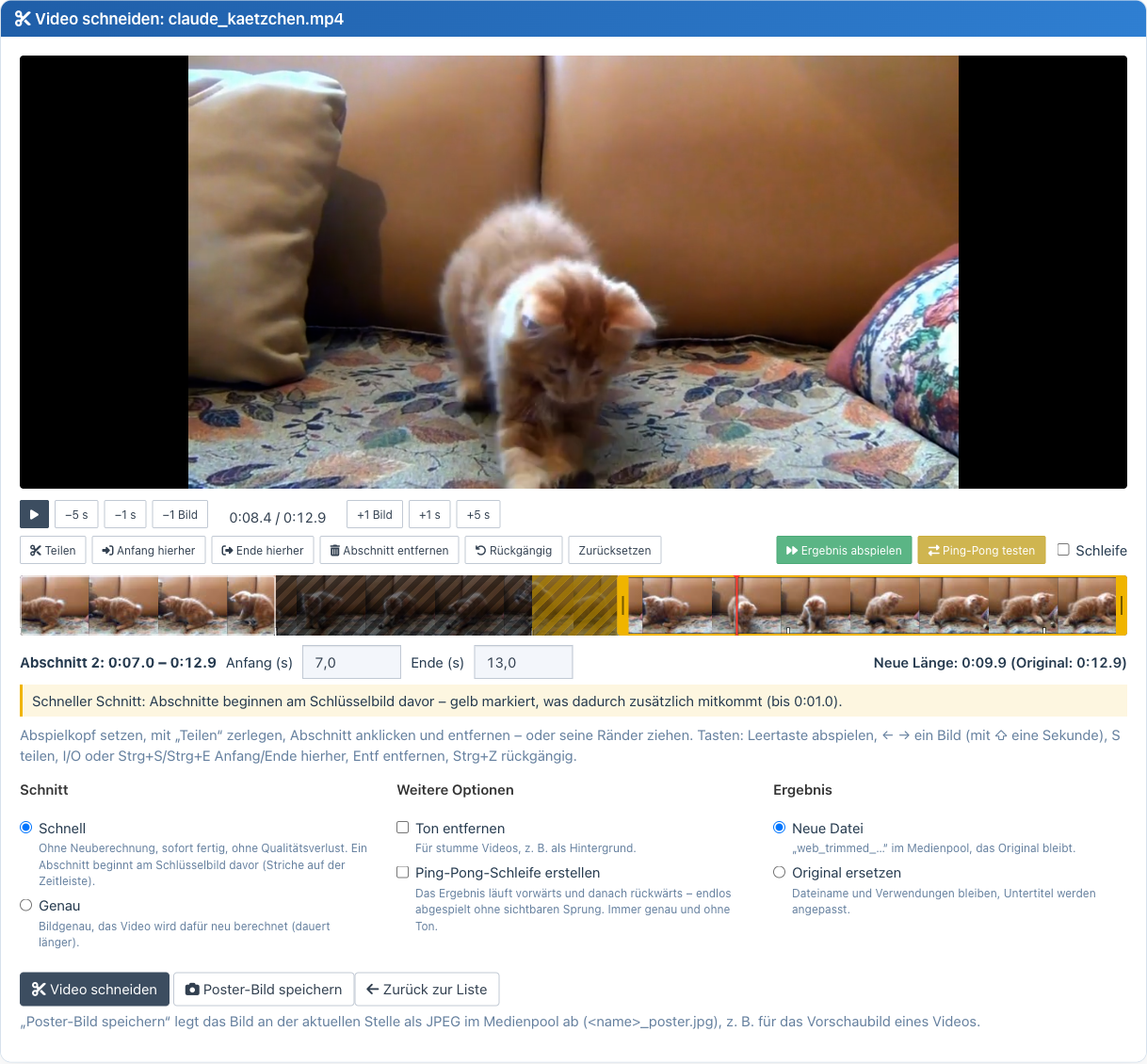
- Timeline with thumbnails: split, remove segments, drag edges, undo – cut out several parts at once
- Fast (no re-encoding, lossless, from the keyframe – the timeline shows what comes along) or exact (frame-accurate)
- Play result (range test) skips removed parts, loop and test ping-pong for the preview
- Remove audio and create ping-pong loop (forwards + backwards, seamless) as before
- Result as a new file (
web_trimmed_…) or instead of the original – subtitles are cut along - Runs as a background job with progress; you may leave the page
- Create poster image: current position as JPEG still in the media pool
- Keyboard: Space, ← → (frame/second), S split, I/O or Ctrl+S/Ctrl+E start/end, Del, Ctrl+Z
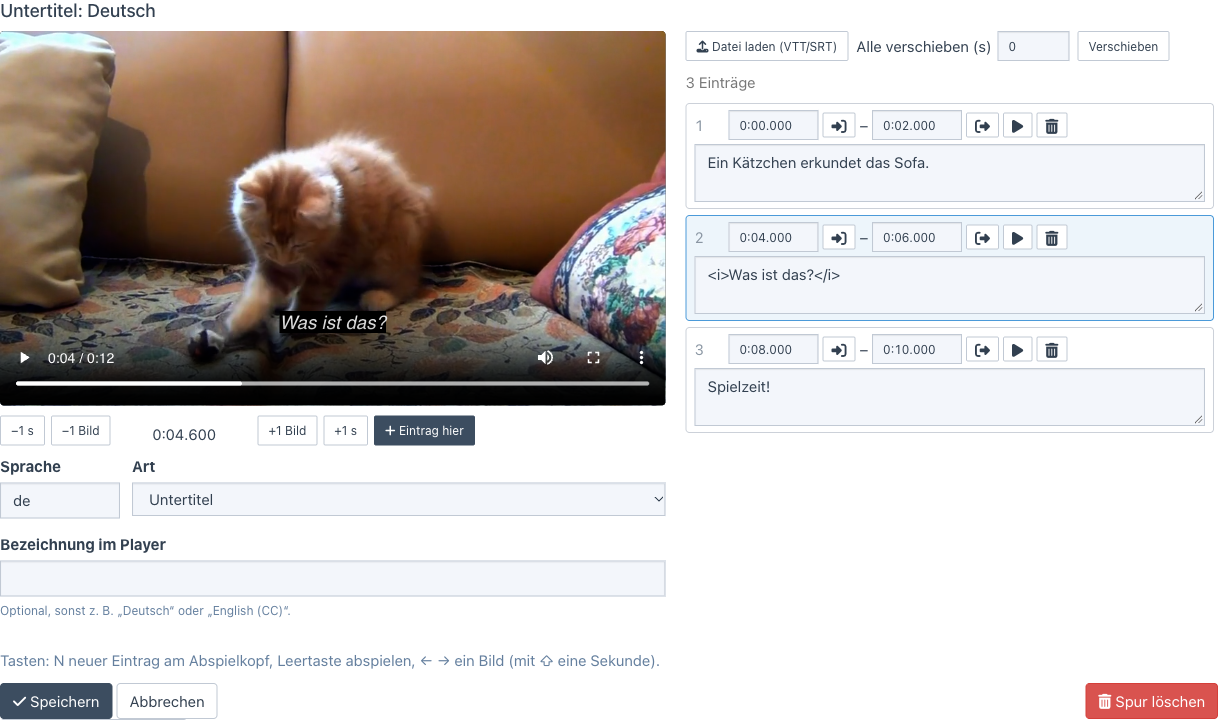
- Editor with live preview in the video: new entry at the playhead (key N), times via button or input (
1:05.250) - Any number of tracks per video: subtitles, captions (for the deaf and hard of hearing) and chapters, per language
- Import WebVTT and SRT (also UTF-16/Windows-1252), shift all entries
- Stored as sanitized WebVTT in the media pool, linked to the video; cut along automatically
- Delivered to the website with the right content type (
text/vtt) – seeVideoInfo::trackTags()
- Detailed technical analysis of all video parameters
- Optimization recommendations for web performance
- Audio/video stream details
- Automatic thumbnails from videos (animated WebP, muted MP4 preview)
- Configurable position for the extraction
- Fallback placeholder if FFmpeg fails
VideoInfoclass (FriendsOfRedaxo\FFmpeg\VideoInfo) for modules and templates- Subtitles for the website, queue and extension points for your own workflows
- Open Media pool → Video tools → Video converter
- Find the video in the list
- Click "Convert this video" at the entry
- You may close the browser – the conversion continues
- Follow the progress at the entry
- Done: the result is taken over when the page is opened again, on the next backend request or cronjob
- Enable Video tools → Settings → Automatic optimization
- Choose the standard size: Full HD (recommended), HD or Small (e.g. for background videos)
- Choose whether only new or also all existing videos are processed
Every uploaded video is then checked right away in the background; the cronjob "FFmpeg: Videos automatisch optimieren" (created automatically when enabled, every 10 minutes) processes further videos one after another and takes over finished results.
Only what needs it is processed:
| Finding | What happens |
|---|---|
| larger than the standard size | scaled down (never up) |
| bitrate too high | re-encoded – replaced only if the file gets smaller |
| codec not H.264 (e.g. HEVC from an iPhone) or pixel format not yuv420p | re-encoded – replaced even if larger, otherwise the video does not play in many browsers |
| only fast start missing | rearranged losslessly (seconds, no re-encoding) |
| all fine | stays unchanged |
File name, title, category and all usages are kept. MP4, M4V and MOV are processed (other formats would need a new file name). Every video is checked once; again if it is replaced (new upload) or the standard size changes.
For a system cronjob or to process the existing videos at once:
php redaxo/bin/console ffmpeg:optimize          # one run like the cronjob
php redaxo/bin/console ffmpeg:optimize --wait # all waiting videos one after another, waits for each- Open Media pool → Video tools → Video trimmer (or "Cut video" in the detail view of a video)
- Choose a video from the list (all types)
- Set the playhead (click the timeline, arrow keys, ±1 frame/second) and split
- Click a segment and remove it – or drag its edges or type exact start/end times
- Play result checks the result, loop repeats it, test ping-pong plays it forwards and backwards
- Choose fast or exact, optionally remove audio / create ping-pong loop
- New file (
web_trimmed_*) or replace original – "Cut video" starts the job - Save poster image: still at the current position as
<name>_poster.jpgin the media pool
- Media pool → Video tools → Subtitles (or "Subtitles" in the detail view of a video)
- Choose a video → add subtitles or edit an existing track
- Set language, kind and optionally the label in the player
- Write entries (N = new entry at the playhead) or load a VTT/SRT file
- Save – the track is stored as
<video>-<language>.vttin the media pool
- Open Media pool → Video tools → Video information
- Choose a video
- See resolution, bitrate, codec, frame rate, audio details, aspect ratio and recommendations with a score
<?php
use FriendsOfRedaxo\FFmpeg;

// Get video information in modules
$videoFile = 'REX_MEDIA[1]';
$info = VideoInfo::getBasicInfo($videoFile);

if ($info) {
    echo '<div class="video-info">';
    echo '<h3>' . $info['filename'] . '</h3>';
    echo '<p>Duration: ' . $info['duration_formatted'] . '</p>';
    echo '<p>Resolution: ' . $info['width'] . ' × ' . $info['height'] . ' px</p>';
    echo '<p>Aspect ratio: ' . $info['aspect_ratio'] . '</p>';
    echo '<p>File size: ' . $info['filesize_formatted'] . '</p>';
    echo '</div>';
}
?><?php
use FriendsOfRedaxo\FFmpeg;
$videoFile = 'REX_MEDIA[1]';
// Duration only (fast)
$duration = VideoInfo::getDuration($videoFile);
echo 'Duration: ' . $duration . ' seconds';
// Aspect ratio only
$ratio = VideoInfo::getAspectRatio($videoFile);
echo 'Format: ' . $ratio;
?><?php
use FriendsOfRedaxo\FFmpeg;
$videoFile = 'REX_MEDIA[1]';
$status = VideoInfo::getOptimizationStatus($videoFile);
if ($status['optimized']) {
echo '<span class="badge badge-success">Web-optimized</span>';
} else {
echo '<span class="badge badge-warning">Not optimized</span>';
foreach ($status['recommendations'] as $rec) {
echo '<li>' . $rec . '</li>';
}
}
echo '<p>Score: ' . $status['score'] . '/100</p>';
?><?php
use FriendsOfRedaxo\FFmpeg;
$videoFile = 'REX_MEDIA[1]';
$info = VideoInfo::getBasicInfo($videoFile);
if ($info) {
// CSS class based on aspect ratio
$aspectClass = match($info['aspect_ratio']) {
'16:9' => 'video-widescreen',
'9:16' => 'video-portrait',
'1:1' => 'video-square',
default => 'video-standard'
};
echo '<div class="video-container ' . $aspectClass . '">';
echo '<video controls>';
echo '<source src="' . rex_url::media($videoFile) . '" type="video/mp4">';
echo '</video>';
echo '</div>';
}
?><?php
$videoFile = 'REX_MEDIA[1]';
// Animated WebP preview – needs a media manager type with 'rex_effect_video_to_webp'
$webpPreview = rex_media_manager::getUrl('video_webp', $videoFile);
echo '<img src="' . $webpPreview . '" alt="Video WebP Preview">';
// MP4 preview (muted) – needs a media manager type with 'rex_effect_video_to_preview'
$mp4Preview = rex_media_manager::getUrl('video_preview', $videoFile);
echo '<video autoplay muted loop><source src="' . $mp4Preview . '" type="video/mp4"></video>';
// Combined: WebP as fallback for MP4
echo '<video autoplay muted loop poster="' . $webpPreview . '">';
echo '<source src="' . $mp4Preview . '" type="video/mp4">';
echo '<img src="' . $webpPreview . '" alt="Video Preview">';
echo '</video>';
?><?php
use FriendsOfRedaxo\FFmpeg;
// Video list from the media pool
$sql = rex_sql::factory();
$videos = $sql->getArray('SELECT filename FROM rex_media WHERE filetype LIKE "video/%"');
echo '<div class="video-gallery">';
foreach ($videos as $video) {
$filename = $video['filename'];
$info = VideoInfo::getBasicInfo($filename);
// WebP thumbnail for better performance
$thumbnail = rex_media_manager::getUrl('video_webp_thumb', $filename);
if ($info && $thumbnail) {
echo '<div class="video-item">';
echo '<a href="' . rex_url::media($filename) . '" data-lightbox="videos">';
echo '<img src="' . $thumbnail . '" alt="' . $info['filename'] . '">';
echo '<div class="video-overlay">';
echo '<span class="play-button">▶</span>';
echo '<span class="duration">' . $info['duration_formatted'] . '</span>';
echo '</div>';
echo '</a>';
echo '</div>';
}
}
echo '</div>';
?>getInfo($filename)– complete video informationgetBasicInfo($filename)– basic information for templatesgetDuration($filename)– duration only (fast)getAspectRatio($filename)– aspect ratio onlygetOptimizationStatus($filename)– web optimization with scoreisMobileOptimized($filename)– mobile compatibilityhasFaststart($filename)– does the video start instantly (index at the start of the file)?tracks($filename)/trackTags($filename, $defaultLang)– subtitles and chapters for the website
use FriendsOfRedaxo\FFmpeg\VideoInfo;

echo '<video controls src="' . rex_url::media('film.mp4') . '">'
    . VideoInfo::trackTags('film.mp4', 'en')   // <track> elements, English subtitles on by default
    . '</video>';

foreach (VideoInfo::tracks('film.mp4') as $track) {
    // ['file' => 'film-en.vtt', 'url' => '/index.php?rex-api-call=ffmpeg_track&…', 'lang' => 'en', 'kind' => 'subtitles', 'label' => 'English']
}
The URL delivers the track as text/vtt – many web servers do not know the .vtt extension and send text/plain,
which browsers reject for <track>.
With a small project add-on (or in the boot.php of your project add-on) you can build your own workflows – e.g.
several versions after every upload. Only one conversion runs at a time; further jobs go into the queue and run one
after another (continued after every finished job, by the cronjob and with php redaxo/bin/console ffmpeg:optimize --wait).
use FriendsOfRedaxo\FFmpeg\Presets;
use FriendsOfRedaxo\FFmpeg\Queue;
use FriendsOfRedaxo\FFmpeg\VideoInfo;

rex_extension::register('MEDIA_ADDED', static function (rex_extension_point $ep): void {
    $file = (string) $ep->getParam('filename');
    if (!VideoInfo::isSupportedVideoFile($file)) {
        return;
    }
    $name = pathinfo($file, PATHINFO_FILENAME);
    foreach (['480p', '720p', '1080p'] as $size) {
        // Presets::build(size, quality, audio) – never scaled up, H.264/AAC, fast start
        Queue::add($file, Presets::build($size, 'balanced', 'keep'), $name . '-' . $size . '.mp4', ['size' => $size]);
    }
});
Queue::add(string $video, string $command, ?string $output = null, array $extra = [])
| Parameter | Meaning |
|---|---|
$video |
file name in the media pool |
$command |
ffmpeg command with the placeholders INPUT and OUTPUT.<ext> – easiest with Presets::build() |
$output |
file name of the new version in the media pool (title, description and copyright are copied); null replaces the original |
$extra |
your own data, returned with the job and in FFMPEG_JOB_DONE |
The source is never deleted for queued jobs. More methods: Queue::pending(), Queue::remove($id).
Presets::build($size, $quality, $audio): $size = original, 1080p, 720p, 480p, 360p · $quality =
high, balanced, small · $audio = keep, normalize (−16 LUFS), remove. Presets::FASTSTART_REMUX
rearranges losslessly.
| Extension point | When | Subject / parameters |
|---|---|---|
FFMPEG_JOB_COMMAND |
before every job (buttons, automatic optimization, cut, queue) | subject: command (changeable, placeholders stay) · video, mode (new_file/overwrite), extra |
FFMPEG_JOB_DONE |
after every job, done or failed | job (VideoJob), video, result (file name of the result), status (done/error), mode, extra |
FFMPEG_AUTO_OPTIMIZE |
before the automatic optimization processes a video | subject: [reason, not web-compatible, rearrange only] or null; return null to skip · media, preset |
Example: react to a finished version and exclude a category from the automatic optimization:
rex_extension::register('FFMPEG_JOB_DONE', static function (rex_extension_point $ep): void {
    if ('done' === $ep->getParam('status') && ($ep->getParam('extra')['size'] ?? '') === '1080p') {
        // e.g. notification, your own link, another Queue::add() …
    }
});

rex_extension::register('FFMPEG_AUTO_OPTIMIZE', static function (rex_extension_point $ep) {
    return 12 === $ep->getParam('media')->getCategoryId() ? null : $ep->getSubject();
});- All backend endpoints (
ffmpeg_convert,ffmpeg_editor,ffmpeg_stream) are reachable in the backend only, require a CSRF token and check the permissionffmpeg[]plus the media pool permission for the category of the video. Up to 4.9,ffmpeg_convertwas callable via the frontend and without a token. - Only
ffmpeg_trackis public: it delivers nothing but.vttfiles linked as subtitle tracks (which are in the media pool anyway) and respectsrex_media::isPermitted()(e.g. YCom media protection). - ffmpeg commands are built only from fixed settings or PHP code; every argument is escaped. There is no input field for commands any more.
Ubuntu/Debian:
sudo apt update
sudo apt install ffmpeg
CentOS/RHEL:
sudo yum install epel-release
sudo yum install ffmpeg
macOS (Homebrew):
brew install ffmpegTest:
ffmpeg -version
ffprobe -version- Install the add-on via the installer or manually
- Settings under Video tools → Settings: size, quality and audio for "Optimize" and "Create web version", automatic optimization, auto cleanup
Since 5.0, custom FFmpeg commands can no longer be entered: they were error-prone and hard to understand for editors. Previous settings are mapped to the matching options on update.
Video trimmer (cut editor)
- Space – play / pause
- ← / → – one frame back / forward (with ⇧ one second), Home / End – start / end
- S – split at the playhead
- I / O or Ctrl + S / Ctrl + E – start / end of the selected segment here
- Del – remove segment, Ctrl + Z – undo
Subtitles
- N – new entry at the playhead, Space – play, ← / → – one frame (with ⇧ one second)
- MP4, AVI, MOV, WMV, WebM, MKV
- Everything FFmpeg supports
- Converted videos:
web_originalname.mp4 - Additional variants:
web_originalname_2.mp4,_3.mp4, … (next free name) - Trimmed videos:
web_trimmed_originalname.mp4(ping-pong:…_loop.mp4) - Subtitles:
originalname-en.vtt,originalname-en-cc.vtt,originalname-en-chapters.vtt - Poster images:
originalname_poster.jpg - Duplicates: automatic counter suffix
- Check the installation:
which ffmpeg - Is the PATH set correctly?
- Is one of the PHP functions
exec,shell_execorproc_openallowed?
- Uninstall the VideoPreview add-on – its thumbnail features are part of this add-on
- Check disk space and file permissions
- Is a job still running? Only one job runs at a time; others wait in the queue
- Check the MIME types in the database
- Browser support for the video format
See CHANGELOG.md.
MIT license. Contributions are welcome!
- Lead development: Thomas Skerbis (@skerbis)
- Original version: Joachim Dörr (@joachimdoerr)
- Community: Friends Of REDAXO
- Cut and subtitle editor modeled on the add-on video_editor for REDAXO 6
- Sample video in the screenshots: Kitten from Pixabay
Friends Of REDAXO - https://github.com/FriendsOfREDAXO